Overview
BI Automation Interface lets you refresh datasets in bulk and export refresh history across multiple workspaces. It helps you spot refresh failures quickly across many workspaces and reports. Everything is driven by simple JSON configuration files.
You do not need Power BI admin rights. If you can access a workspace dataset and view refresh history in the cloud, you can use the tool.
Config Files
Each configuration file is a JSON object. Keys are preset names, and values are arrays of workspace prefixes.
{
  "_instructions": "Remove instruction keys when creating your own config file.",
  "All Prod": ["TeamName_Prod_"],
  "All UAT": ["TeamName_UAT_"],
  "All Dev": ["TeamName_Dev_"],
  "Select All": ["TeamName_Prod_", "TeamName_UAT_", "TeamName_Dev_"]
}
Prefix Matching
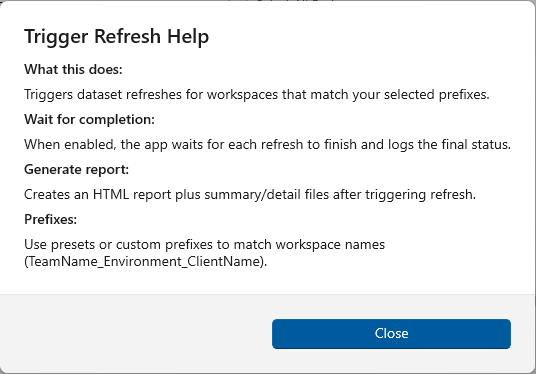
Prefixes match the beginning of workspace names. Matching is case-insensitive.
Preset Selection
Choose a preset to quickly select a pre-defined set of workspace prefixes. You can also select all prefixes at once.
Custom Prefixes
Add custom prefixes in the text box. Use commas to separate multiple values.
Trigger Refresh
Select a config file, choose a preset, and click Trigger Refresh to run refreshes in bulk.
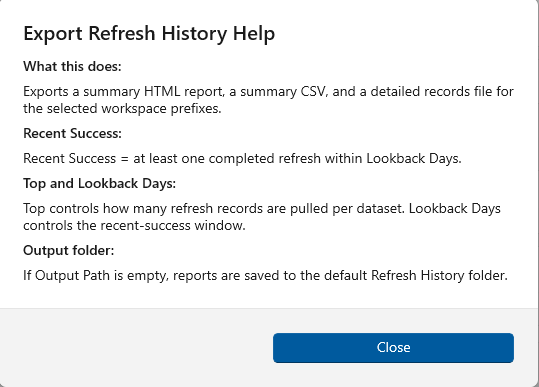
Export Refresh History
Use lookback days and top filters to control the output size. You can also provide a custom output path.
Reports include an HTML summary plus CSV outputs for analysis.
Manage Refresh Reports
Preview HTML reports, open the summary CSV, and open the details CSV or Excel output when available.
Sample report files are provided for first-time use, so the page is never empty.
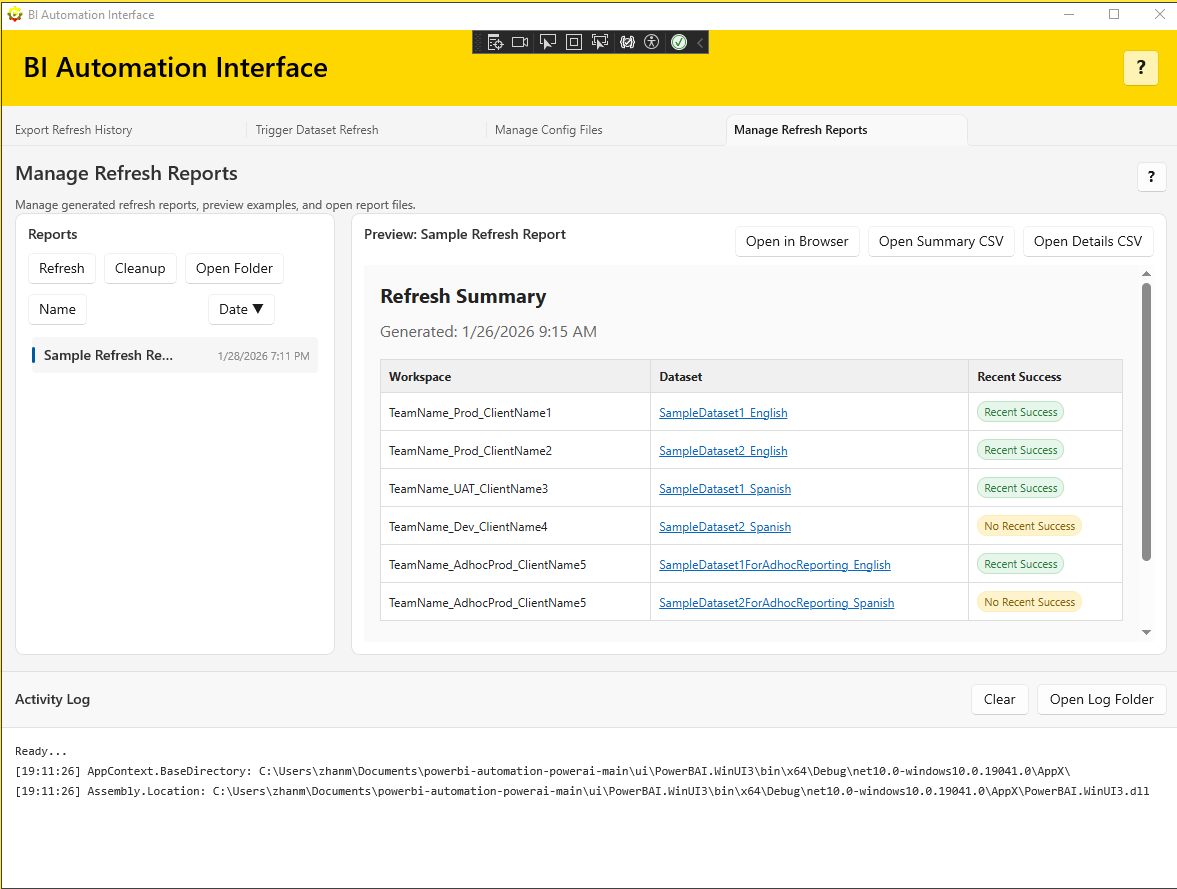
Cleanup Reports
Cleanup removes user-created refresh report entries only. It does not delete anything from your workspaces or datasets.
In-app Help
Each tab has a help button with short explanations of inputs, outputs, and file naming.
Use the help popups whenever you need a quick reminder while working.
Screenshots
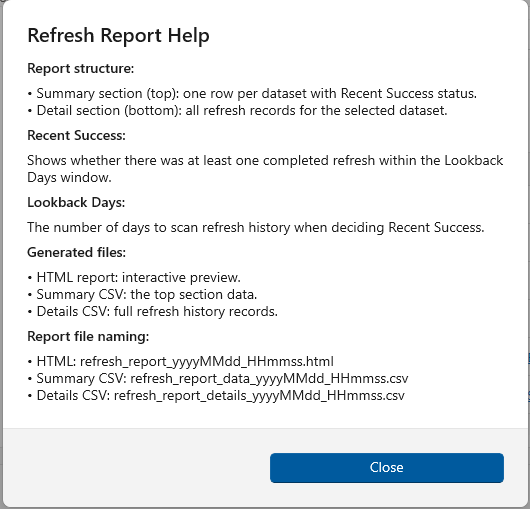
Refresh Report Help
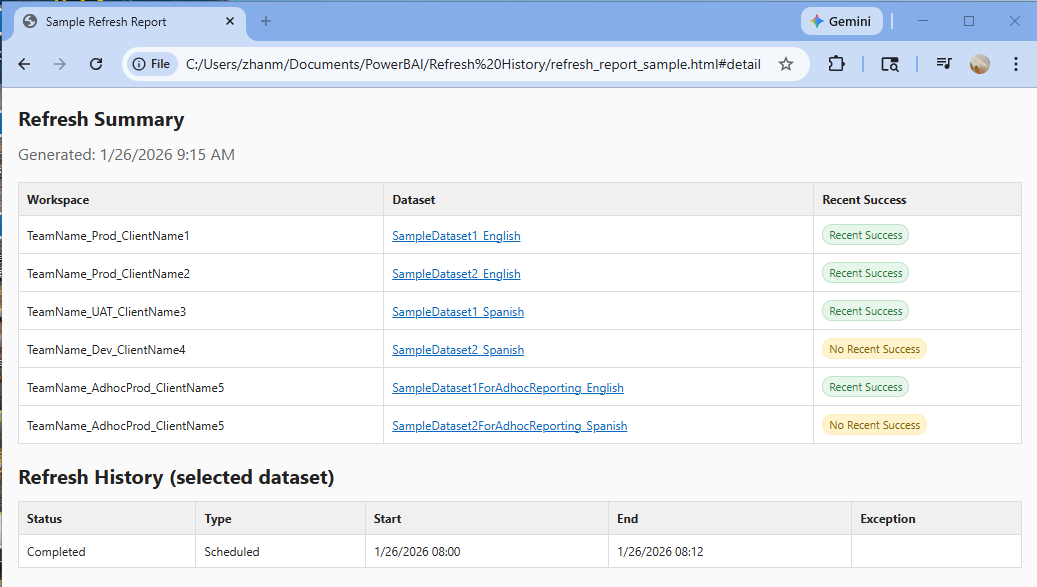
Report Preview (Browser)
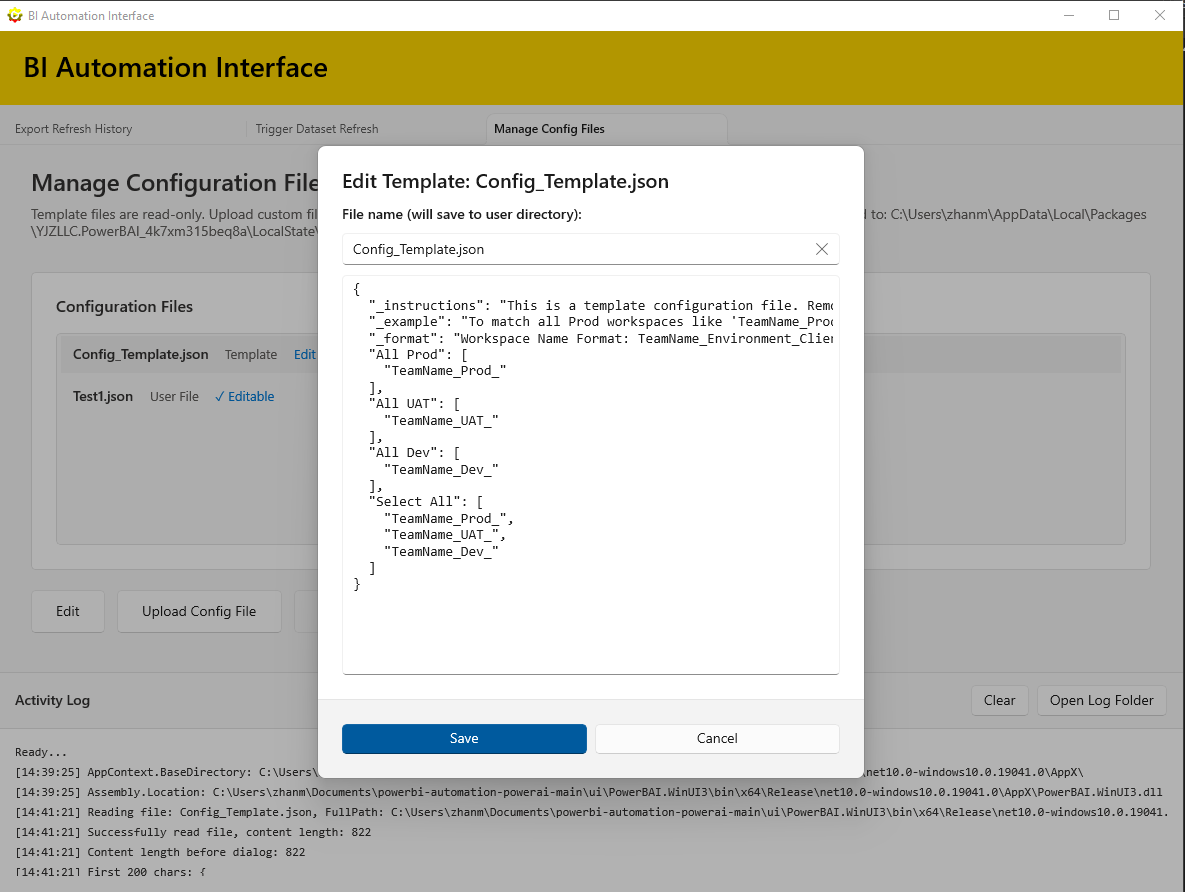
Manage Config Files
Troubleshooting
Check the Activity Log for errors and warnings. If a config file is deleted, the app falls back to the template.