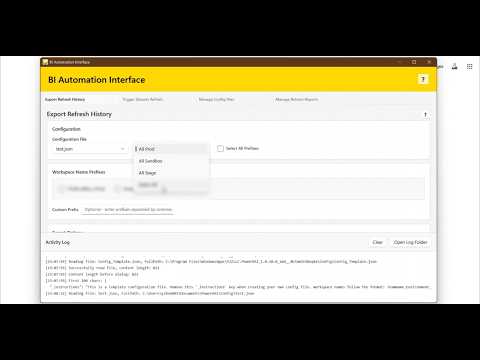
Install prerequisites, configure prefixes, and run your first refresh.
Ensure PowerShell 7 and the MicrosoftPowerBIMgmt module are available. Install .NET Desktop Runtime if prompted.
Open BI Automation Interface and review the requirements dialog for setup guidance. You do not need Power BI admin rights.
Edit Config_Template.json to create your own workspace prefix presets.
Select a configuration file, choose a preset, and click Trigger Refresh.
Use Export Refresh History to generate HTML + CSV reports for auditing.
Open the Manage Refresh Reports tab to preview HTML reports and open summary/details CSVs.
Click the help button on each tab for quick guidance and file naming details.
Review the Activity Log for status updates and troubleshooting details.
Workspace naming format: TeamName_Environment_ClientName
{
  "All Prod": [
    "TeamName_Prod_"
  ],
  "All UAT": [
    "TeamName_UAT_"
  ],
  "All Dev": [
    "TeamName_Dev_"
  ],
  "Select All": [
    "TeamName_Prod_",
    "TeamName_UAT_",
    "TeamName_Dev_"
  ]
}Check the documentation for prefix rules, presets, and troubleshooting steps.
View Documentation